
Screen recording is one of the most useful built-in tools on iPhone. It can help you save instructions, capture a bug, record a tutorial, or share steps with a friend or support team. If you are searching for how to screen record on iPhone, the process is quick once the feature is enabled in Control Center.
How to Record Screen on iPhone from Control Center
The fastest way how to screen record on iphone is through Control Center. Before recording, make sure the Screen Recording control is available. If you do not see it, go to Settings -> Control Center -> add Screen Recording.
Once it is added, the basic process is the same across modern iPhones:
- Open Control Center
- Tap the Screen Recording button
- Wait for the 3-second countdown
- Use your iPhone normally while it records
- Tap the red status indicator (top of the screen) and select Stop
If you are learning how to screen record on iPhone for the first time, remember that the recording saves automatically to the Photos app.
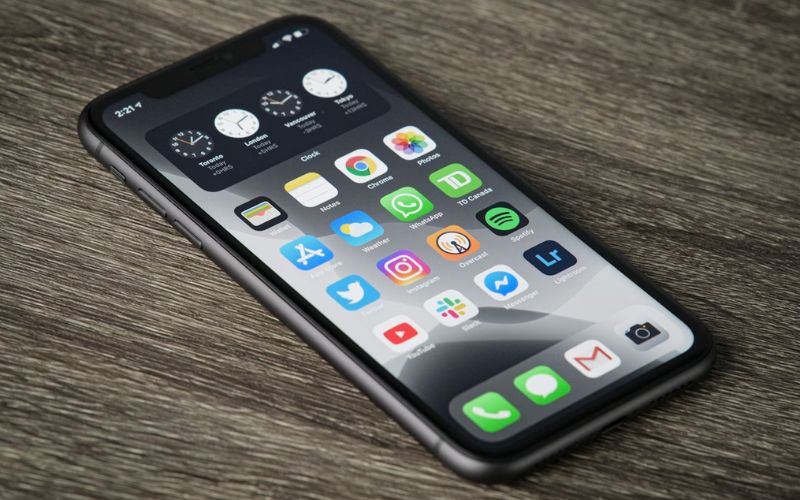
iPhone 17 series
On the iPhone 17 Series, Control Center is accessed by swiping down from the top-right corner of the screen. The Screen Recording button works the same way, and the red recording indicator appears at the top while active. If you want a clean recording, turn on Do Not Disturb or a Focus mode before you begin.
iPhone 16 series
For the iPhone 16 Series, the steps remain identical: open Control Center, tap Screen Recording, and stop from the red indicator. If you are troubleshooting a settings issue, recording your screen is often the fastest way to document what you see for technical support.
iPhone 15 series
If you are specifically searching how to screen record on iPhone 15, the steps are exactly the same as the iPhone 16 and iPhone 17 Series. The key is ensuring the Screen Recording control is enabled in Control Center. Once enabled, recording begins instantly after the countdown.
Because many users search how to screen record on iPhone 15, it is worth noting one detail: your iPhone will capture everything visible on screen, including banners and pop-ups, unless you manage notifications before starting.
How to Get Screen Record on iPhone with Sound
Many people learn how to screen record on iPhone and then realize the recording has no sound. This usually happens because the microphone is not enabled, or the app being recorded does not allow audio capture.To record with sound:
- Open Control Center
- Press and hold the Screen Recording button
- Tap the Microphone icon to turn it ON
- Tap Start Recording
This enables microphone audio, which is useful for voice explanations, narration, or recording what you are saying while demonstrating a process.
It is important to understand the difference between the two audio types:
- System audio: sound produced by the iPhone itself
- Microphone audio: sound picked up by your voice and the environment
In many cases, system audio is recorded automatically when allowed. However, some apps block system audio capture for privacy or copyright reasons.
If you want to know how to get screen record on iPhone with sound and it still fails, the limitation is usually caused by the app, not the iPhone settings.
>>> Read more: Does Medicaid Cover Invisalign? 7 Things You Need to Know
Edit, Trim, and Share your Recording
After you finish, your screen recording saves as a video in the Photos app. From there, you can trim and share it without installing anything.To trim the recording:
- Open Photos
- Tap the recording
- Tap Edit
- Drag the start and end sliders
Tap Done and saveIf your goal is a professional-looking tutorial, trimming the first few seconds (where you open Control Center) can make the video cleaner.
To share your screen recording, tap the Share icon and choose Messages, Mail, AirDrop, or a cloud service. If you are sending it for support, keep the file short so it uploads faster.
This is one reason many people search how to record screen on iPhone, the built-in tool produces shareable videos instantly.
Common Problems and Quick Fixes
- The screen recording button is missing
Go to Settings > Control Center and add Screen Recording. This is the most common reason users ask how to get screen record on iPhone.
- Recording stops unexpectedly
This is often caused by low storage. Check Settings > General > iPhone Storage and free space if needed.
- No audio in the recording
Press and hold the Screen Recording button and confirm the Microphone is turned ON. If you need the app sound and it is still missing, the app may block system audio recording.
- The video looks laggy or low quality
Close background apps, avoid Low Power Mode during recording, and keep the recording short. Performance issues can appear if your iPhone is overheating or low on storage.
- Notifications appear in the recording
Turn on Focus mode before recording. This is one of the easiest ways to make a recording cleaner when learning how to screen record on iPhone.
>>>Read more: How To Take A Screenshot On A Chromebook: 4 Methods Explained
FAQs
Can I screen record a FaceTime or call audio?
How to screen record on iphone the video display, but recording call audio is restricted in many cases. For privacy reasons, iPhone and many calling apps limit or block capturing call audio.
If you need to document an issue during a call, you may still be able to record the screen, but do not assume the audio will be included.
How long can I record on my iPhone?
There is no fixed time limit. The real limit is available storage and battery. If you are doing a long tutorial, consider freeing storage and keeping your iPhone connected to power.
Does screen recording show notifications?
Yes. Screen recording captures what is on your screen, including notifications and banners. If you want privacy, enable Focus mode before you start. This is a key step when people research how to screen record on iPhone for work or support documentation.
Can I record only one app?
No. Screen recording captures the entire screen. If you switch apps, the recording will show that. If you need to record a single app only, the best method is staying inside the app and using Focus mode to reduce distractions.
Conclusion
Knowing how to screen record on iPhone is a practical skill for troubleshooting, tutorials, and everyday sharing. Once Screen Recording is added to Control Center, you can start a recording in seconds, enable sound with the microphone option, and trim the final video in Photos.