

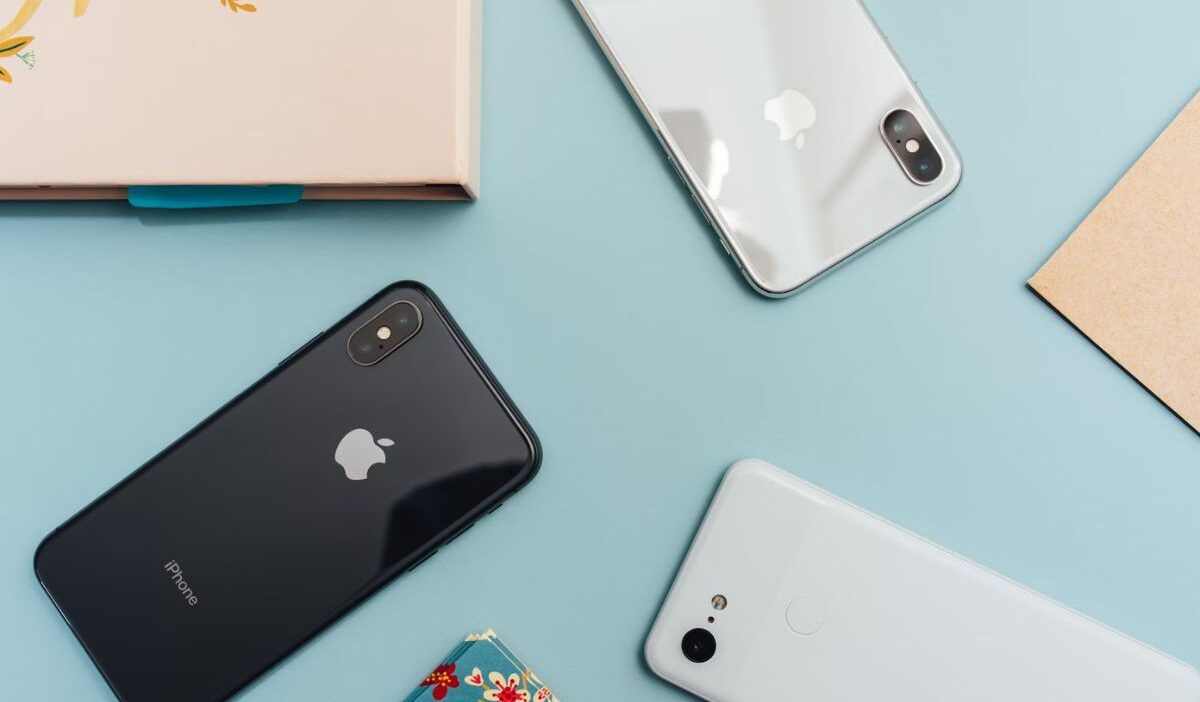
Restarting an iPhone is one of the simplest ways to fix slow performance, frozen apps, Bluetooth glitches, and temporary network issues. If you are searching how to restart iPhone, the steps depend on your model and whether the Side Button works normally.
Before You Restart: Save Work and Check Battery
Before you restart, take a few seconds to protect your data. Even though restarting is safe, it can interrupt uploads, downloads, and active tasks.
If you want the smoothest experience when learning how to restart iPhone, do the following first:
- Save documents, notes, or forms you are editing
- Pause large downloads or file transfers
- Plug in your iPhone if the battery is low
- Confirm you remember your passcode, especially if Face ID or Touch ID is temporarily unavailable after reboot
A restart is usually quick, but if your battery is critically low, your iPhone may not power back on right away. Checking the battery level is a small step that prevents confusion.
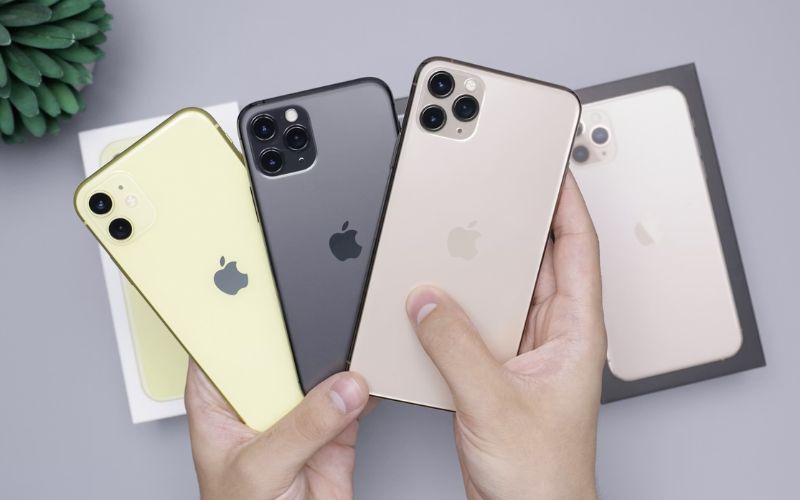
How to Restart iPhone for All Series
Standard Restart for iPhones with Face ID (Most Newer Models)
- Press and hold Side Button + Volume Up (or Volume Down)
- Wait for the slide to power off the screen
- Drag the slider
- Wait about 30 seconds for the iPhone to turn off completely
- Press and hold the Side Button until the Apple logo appears
This method applies to most recent iPhones and is the recommended approach for anyone searching how to restart iPhone in 2026.
Standard Restart for Older iPhones with a Home Button
If you are using an iPhone with a Home Button (such as iPhone 6, iPhone 7, iPhone 8, or iPhone SE models), the restart method is different:
- Hold the Side Button, or use the Top Button on older devices
- Drag the slide to power off
- After the iPhone turns off, press and hold the same button to turn it back on
Even though many guides focus on new models, these older steps are still important when explaining how to restart iPhone correctly.
How To Restart iPhone 16 / iPhone 15 / iPhone 11
The restart steps for how to restart iPhone 16, how to restart iPhone 15, and how to restart iPhone 11 are the same because all three use Face ID and the Side Button + Volume button combination. If you follow the Face ID restart method above, you are using the correct process for each of these models.
>>> Read more: How to Screen Record on iPhone: Audio, Settings & 3 Fixes
3. How to Restart Without Buttons
If your Side Button or Volume buttons do not work, you can still restart through software settings. This is the best option if you are trying to learn how to restart iPhone without relying on hardware buttons.
To restart without buttons:
- Open Settings
- Tap General
- Scroll down and select Shut Down
- Drag the power slider
- After the iPhone powers off, connect it to a charger or computer
- Wait for the Apple logo to appear
This method works across iPhone models and is especially helpful if your buttons are damaged or unresponsive.
How To Force Restart iPhone When It’s Frozen
A force restart is different from a standard restart. It is designed for situations where the screen is frozen, the iPhone is stuck, or you cannot swipe to power off.
If you are searching how to force restart iPhone, use the correct method based on your model type.
Force Restart for Face ID iPhones (Including iPhone 11, iPhone 15, iPhone 16)
- Press and quickly release Volume Up
- Press and quickly release Volume Down
- Press and hold the Side Button
- Keep holding until the Apple logo appears
This is the correct method for how to force restart iPhone on most modern devices.
- Force Restart Instructions for iPhone 7 Series
- Press and hold Volume Down + Side Button
Keep holding until the Apple logo appears. Force Restart for iPhone 6s and Older (Home Button Models)
- Press and hold Home Button + Side Button (or Top Button)
- Keep holding until the Apple logo appears
These older steps are still essential for a complete guide on how to restart iPhone, because many people continue using older iPhones.
What If Force Restart Doesn’t Work?
If force restart does not work, the issue may be more serious than a temporary freeze. Try these steps:
- Charge your iPhone for at least 20-30 minutes
- Try force restart again while it is charging
Check for visible damage or liquid exposure. If the screen remains black, connect the iPhone to a computer and attempt recovery mode. In some cases, a frozen iPhone may require professional service. However, most users find that the correct how to force restart iPhone method solves the issue.
>>> Read more: How To Take A Screenshot On A Chromebook: 4 Methods Explained
FAQs
How often should I restart my iPhone?
Most people do not need to restart daily. Restarting once every week or two can help prevent minor glitches. If your iPhone is running smoothly, there is no strict schedule required.
Is “force restart” the same as reset?
No. A force restart simply reboots the device. A reset usually refers to erasing settings or content. If you are learning how to restart iPhone, it is important not to confuse a force restart with a factory reset.
Will restarting log me out of apps?
In most cases, no. Restarting usually does not log you out of apps. However, some apps may require you to sign in again if they use high-security settings or if the app session expires.
Conclusion
Knowing how to restart iPhone is one of the most practical troubleshooting skills for everyday users. A standard restart can fix slow performance, network glitches, and app crashes, while a force restart is the correct solution when the iPhone is frozen or unresponsive.